
Please consult the latest documentation for an update to this process
After installing the plugin, there will be a section called 'Maps' added to the MapifyPro plugin section.
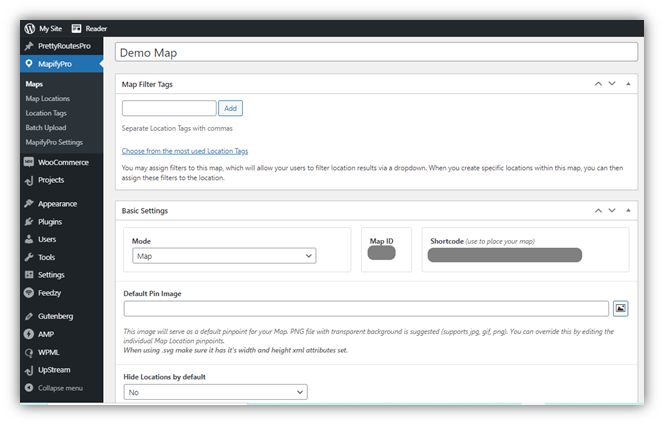
Within this page, you can add as many maps as you like, in a very similar manner as adding blog posts. When creating a new map, or editing an existing map, you may apply the following settings:
-Choose whether you would like Map Mode or Custom Image Mode.
-Specify whether you would like to include search and/or filtering capability to your map. You may also specify the search radius in miles.
-Choose a default pin image for the map (though note you can use a unique pin image for every location). If not specified in a map location, it will default to the image you upload on your map setting.)
-Drag momentum for image mode
-Upload specific images to be used for the map (Custom image Mode)
-Choose the default Map Style (Terrain, MapifyPro Default, Ink, Pastel, etc.)
-Specify the default zoom level of your map.