
Updating the Search Region Bias
Within your map, you may receive an error "No locations were found within your search criteria. Please search again". This is likely due to the Map not being set with a specific Search Bias (restricted region for the search to be applied on).
Resolution
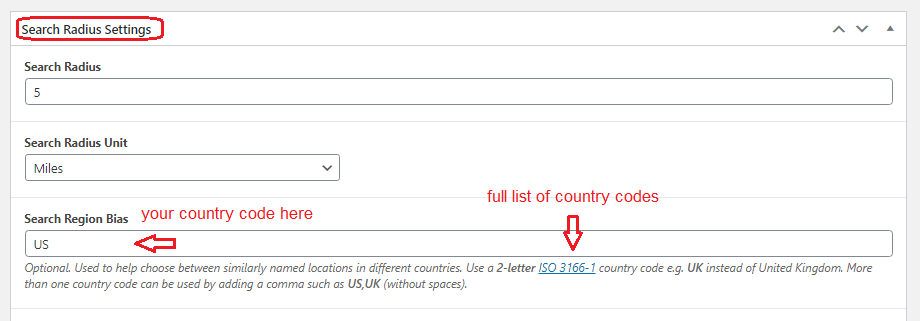
To resolve this search issue, you may need to update your Bias Settings with the specific 2-character code of your country (full list of country codes here) to obtain a more consistent search result.
How to Update the Search Bias
To update your Bias Settings, click on Maps within the MapifyPro plugin, then click on the required Map. On the Map settings page, scroll down to 'Search Radius Settings' section of the page, and enter the country code in the 'Search Region Bias' field. See screenshot below where the Search Region Bias has been set to the 'US'.
Click on Update to save your changes.
Multiple Countries are Possible
You may use multiple search regions by separating each with a comma. For example, "US,CA" (without quotes) will lock your search region to the United States and Canada. Please ensure that you do not have any spaces.